YouTube, distilled.
Less watching.
More knowing.
Know the point. Keep the detail.
Turn a video’s captions into a useful reference, right beside YouTube.
Bring your own OpenAI API key. API usage is billed separately.
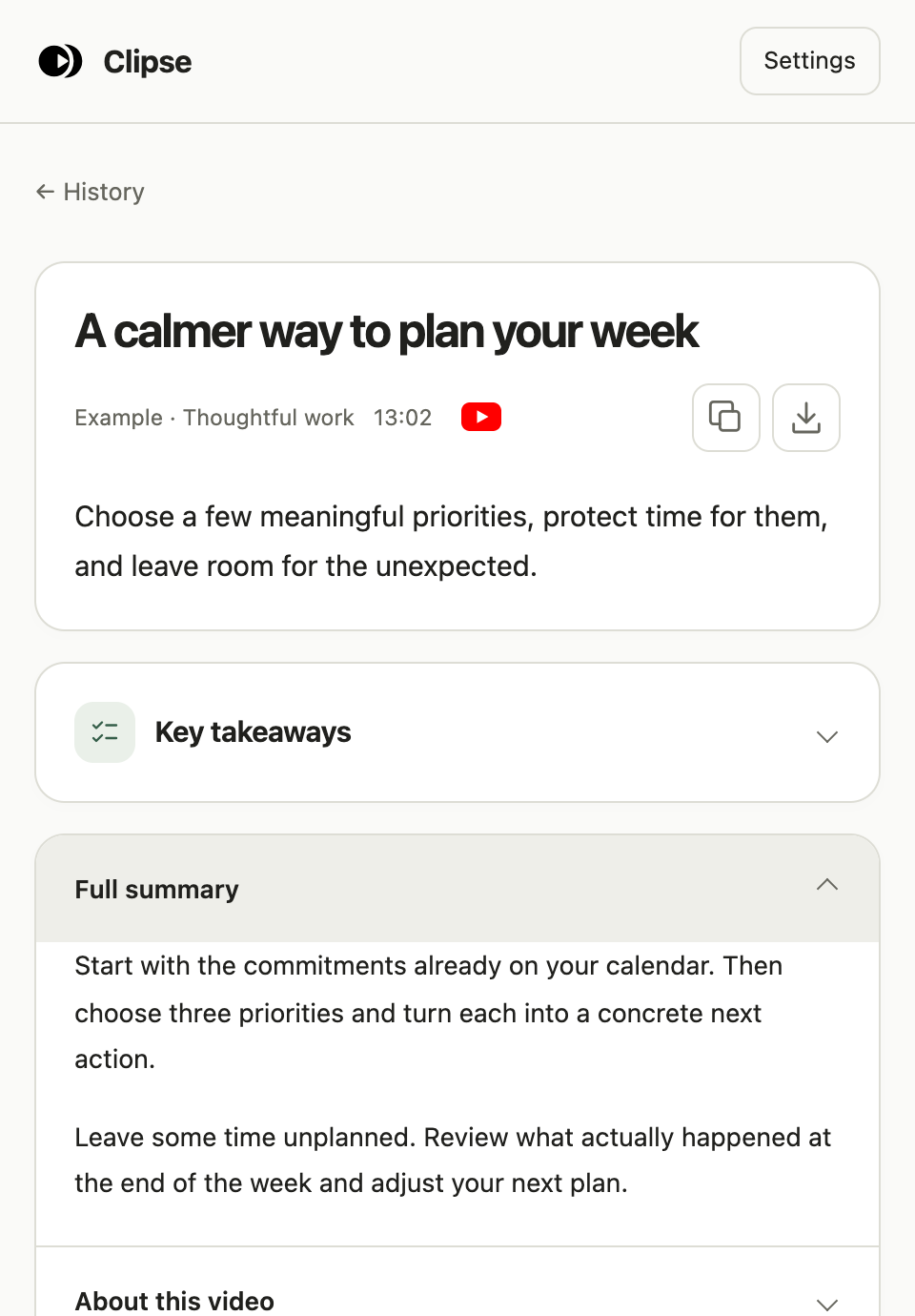
Actual Clipse interface. Illustrative example content.
Find something interesting.
Choose a YouTube video with readable captions. A lecture, a recipe, a review. Your call.
Click Clipse.
Use the logo in the player controls or the Summarize button on a thumbnail.
Keep the useful parts.
Read the summary, jump to a key moment, and find it again in your saved history.
33 seconds with Clipse
From a long video
to a useful reference.
A clear summary. The moments that matter. A searchable library of what you want to remember.
Demo uses illustrative examples. Summaries are based on captions; visual demonstrations are not analyzed.
A summary that fits the video
Keep the details
that matter.
A recipe needs quantities. A review needs tradeoffs. Clipse chooses a summary approach that fits the video, and you can edit what each category preserves.
20 editable categories + an Other fallbackRecipes
Ingredients, quantities, temperatures, and cooking times stated in the captions.
Tutorials
Prerequisites, ordered steps, settings, and the mistakes worth avoiding.
Reviews
Testing conditions, strengths, weaknesses, and who a product suits.
Interviews
The main ideas, who said what, and the qualifications that change the meaning.
A little clarity about your data
Your library stays
with you.
Keys and saved summaries live in your Chrome profile. Captions go directly to OpenAI to create a summary. If you enable Jev classification, excerpts also go to TypeSafe.
Read the privacy policy ↗Before you begin
A few useful answers.
What do I need to use Clipse?
Chrome 116 or later, an OpenAI API key with access to your selected model and available API credit, and a YouTube video with readable captions. An OpenAI API account is billed separately from a ChatGPT subscription. The Chrome Web Store listing is coming soon.
Does it work without opening the video?
Yes. Hover over a YouTube thumbnail and click Summarize. Clipse tries to read captions while keeping you on the current page. If needed, it uses a temporary muted background video tab for extraction.
Can I choose the language and level of detail?
Choose your preferred caption language, summary language, and brief or detailed length in Settings. Availability depends on the caption tracks YouTube provides.
What happens to my saved summaries?
They remain in this Chrome profile. Search them, reopen them, copy them as Markdown, or export and import a JSON backup. Keys are excluded from backups. You can delete individual summaries or clear your saved history.
Do I need Jev or a TypeSafe account?
No. OpenAI handles classification and summarization by default. Jev is an optional classifier that requires a separate TypeSafe key; OpenAI still writes the summary.
How accurate are the summaries?
Clipse works from captions, which can contain errors or leave out information shown on screen. AI summaries can also make mistakes. Use the timestamped source to check important details.
On its way to the Chrome Web Store.
A quieter way to make sense of what you watch.